How Deployment Plans stage Intune apps and policies without manually changing assignments between rings.
There is a familiar point in every Intune rollout: the pilot went well, and now somebody has to remember which Entra group to add to the assignment on Thursday. Or run the Graph script that does it. Or check the change ticket and update three policies by hand. The rings exist, but the schedule lives in our heads and our process documents.
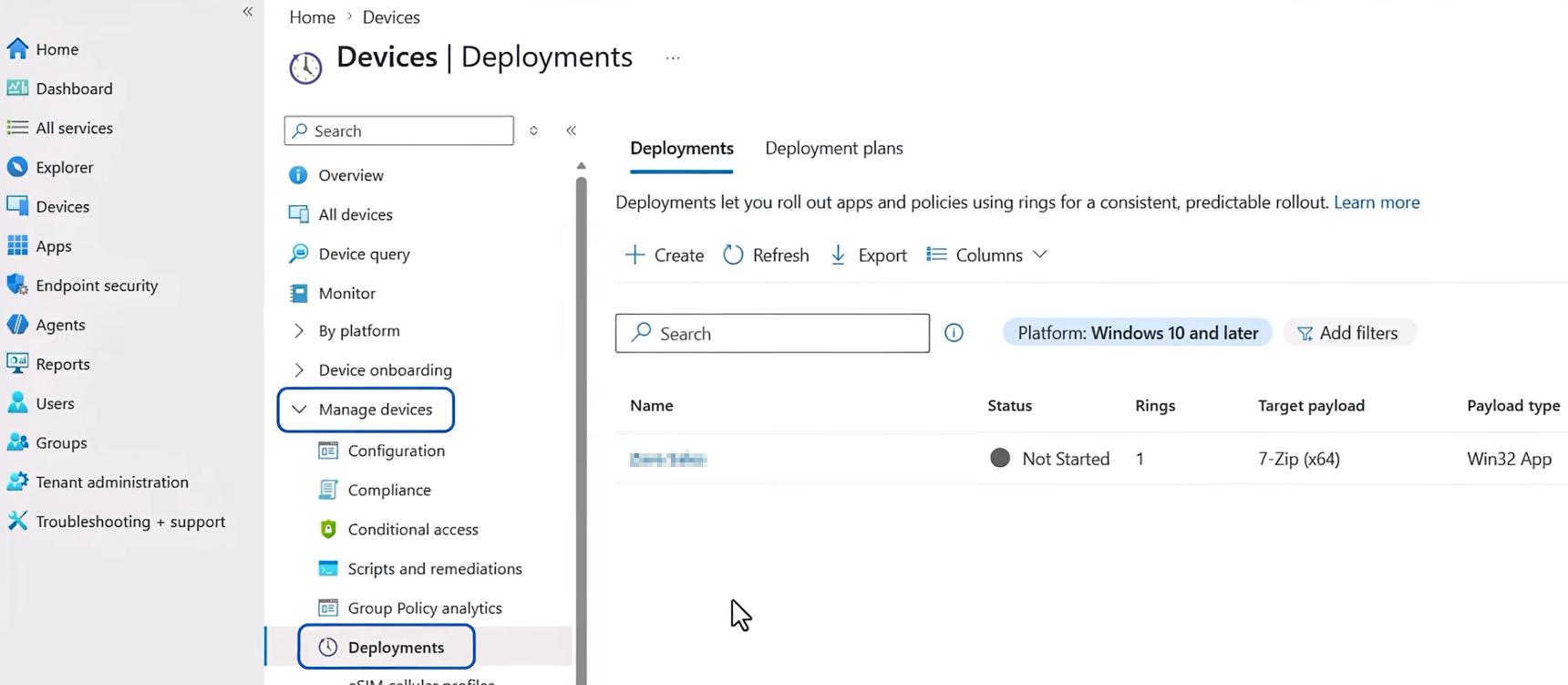
Microsoft has introduced Deployments and Deployment Plans in Intune public preview. They give supported apps and policies a native, staged rollout: define the rings, set the time between them, and let Intune add the assignments as each stage activates. You can find the experience at Devices > Manage devices > Deployments in the Intune admin center.
That removes a surprising amount of manual work. It does not remove the need to watch what happens in each ring.
The problem this solves
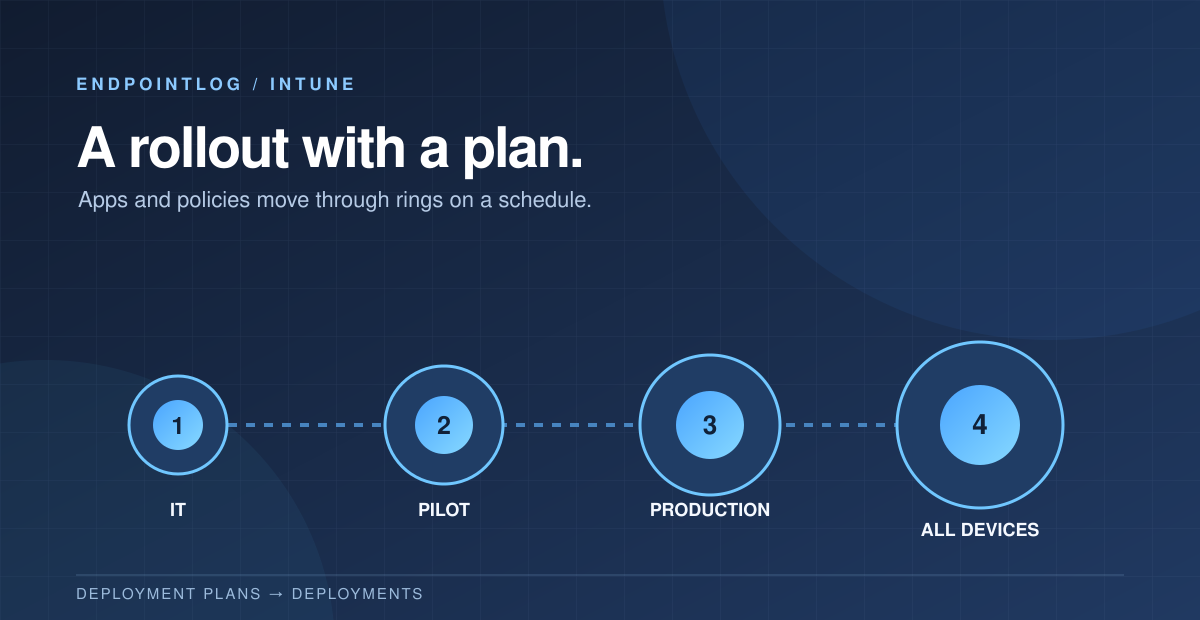
Consider a new endpoint security policy for 5,000 Windows devices. You want to start with Endpoint Engineering, expand to an IT pilot, then a representative business pilot, and finally the wider estate. Today you can build that with Entra groups and separate assignments. But you still have to coordinate the handoff between stages: add the next group yourself, maintain automation, or build an operational checklist around the payload.
The new experience makes the rollout a first-class Intune object. It knows which group is next, when it should activate, and whether the sequence is paused. You still decide which users and devices belong in those groups.
Deployment Plan or Deployment?
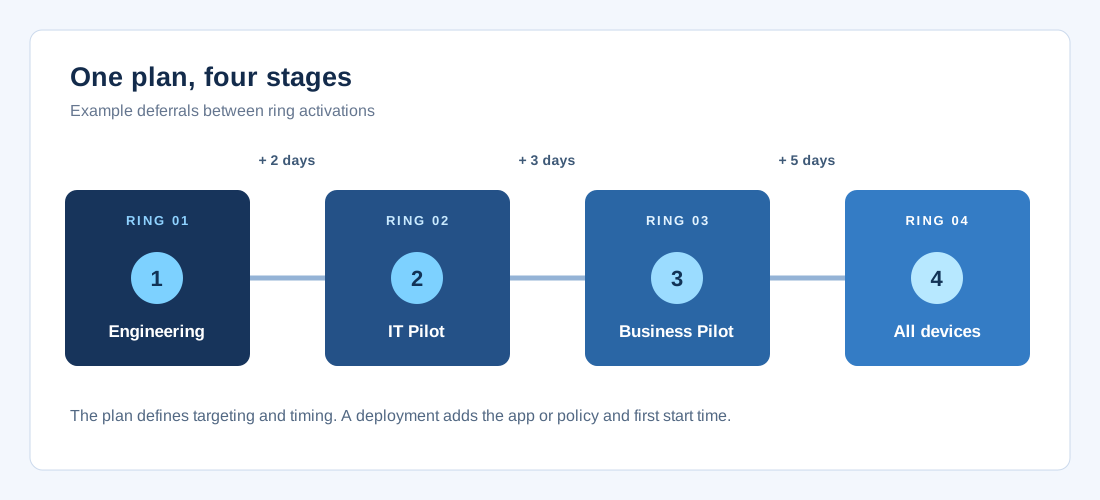
A Deployment Plan is the reusable template: platform, ring names, group assignments, optional filters and exclusions, waiting periods, and scope tags. It contains no app or policy. You could establish a standard “Windows production rollout” plan once and use it for different supported payloads. Plans can be edited later, but changes do not alter deployments already created from them.
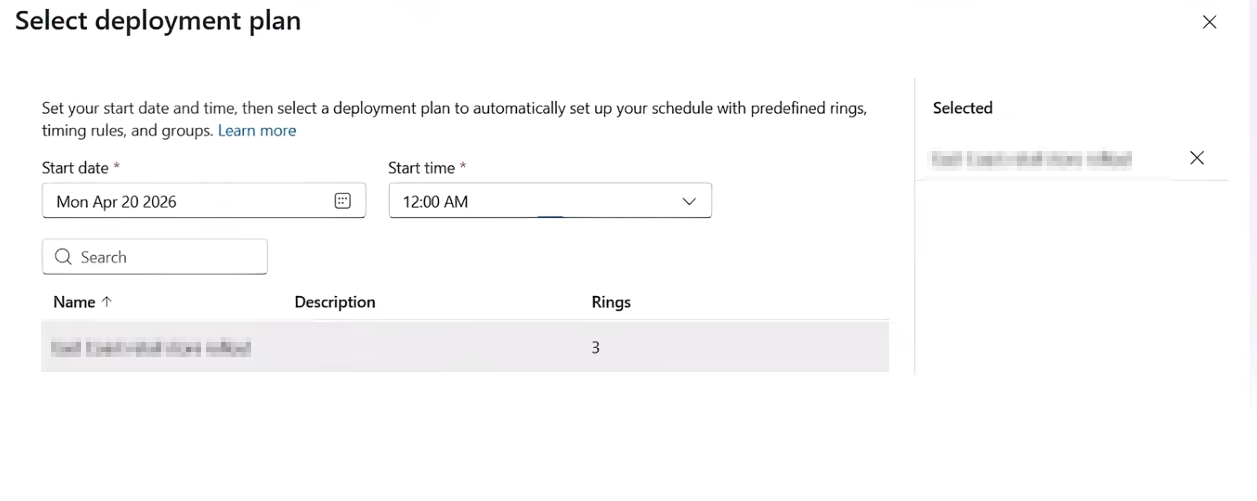
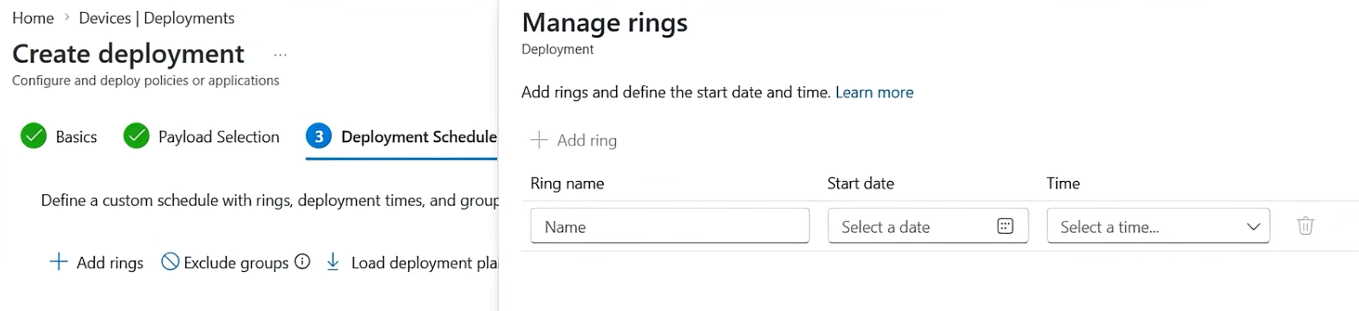
A Deployment is one execution against one existing payload. Select an app or policy, load a plan or configure one-off rings, and choose the first ring’s start date and time. You can adjust groups and filters after loading a plan for that particular deployment. Intune then advances through the later rings according to the configured intervals. Each ring needs an assignment, and the minimum interval between rings is one hour.
This distinction is the feature’s strongest point for me. The plan expresses how your team normally releases changes. The deployment records the specific release that follows it.
What can you roll out in preview?
Microsoft currently lists Windows 10 and later as the supported platform. The supported policy payloads are Settings Catalog and Endpoint Security policies. The supported apps are Windows Win32 apps and Enterprise App Catalog apps.
For those apps, the deployment must use Required install intent. Available and Uninstall are not supported. Enterprise App Catalog updates via supersedence are supported; its automatic update functionality is not supported together with deployments. Compliance policies, scripts, remediations, macOS and mobile policies are not in the documented preview list. I would check the supported payload list before designing a rollout around a particular workload.
What happens to the underlying assignments?
Intune is not introducing an independent targeting engine here. When a ring activates, it updates the assignments on the app or policy itself. Required include assignments are cumulative: if Ring 1 targets Endpoint Engineering and Ring 2 targets IT Pilot, both groups remain assigned after Ring 2 starts. Existing Required assignments on the payload also remain, unless the final ring uses one of the built-in virtual groups.
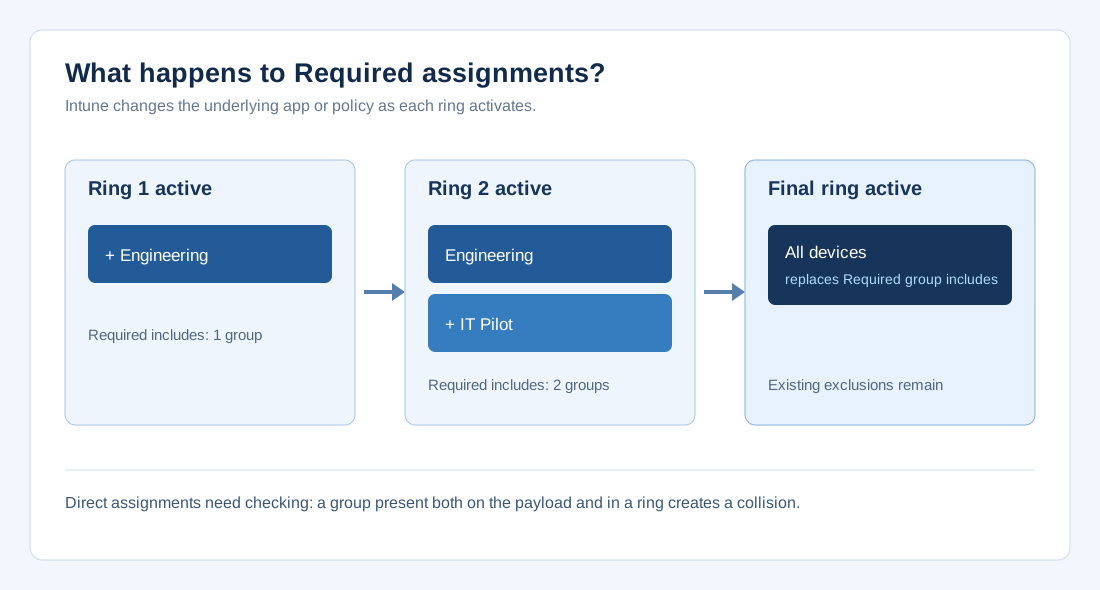
All users and All devices can each be used as a final ring. Intune automatically places a ring with either virtual group last, and you cannot mix a virtual group with Entra security groups in the same ring. When that ring activates, it replaces the payload’s Required Entra security-group include assignments. Existing exclusions remain. Treat that transition as a deliberate change in targeting, particularly if the payload had assignments before you created the deployment.
Create a plan, then run a deployment
Go to Devices > Manage devices > Deployments > Deployment plans and select Create plan. Give it a name, select the platform (or All platforms for a generic template), and add rings. Set the deferral between successive rings, assign at least one group to each, then configure filters, exclusions and scope tags where needed. If you choose All platforms, compatible assignment filters can be configured after you select the payload for a deployment.
Next, create a Deployment, choose the already existing supported app or policy, load your plan and set the start for Ring 1. Review the groups and filters for this particular rollout before you create it. The payload cannot already be selected in another scheduled or active deployment.
My starting point would be four stages: Endpoint Engineering, IT Pilot, Business Pilot, All devices. Give the early rings enough time for app installation and policy reporting, then decide on the production deferral based on how quickly you can actually investigate a problem. An automatic one-hour gap is technically supported; it is not much of a safety net if no one can review the results in that hour.
Assignment collisions are the operational trap
The app or policy stays editable while the deployment runs. That flexibility has a cost: if a group in a deployment ring is also assigned directly to the payload, Intune flags an assignment collision. It checks at creation and again when each ring activates. A collision at creation must be removed before you can proceed. A later collision puts the deployment in an error state and pauses it; remove the conflicting direct assignment, then resume.
I would agree on one owner for assignments during a rollout and document any pre-existing targeting. Otherwise one admin could “help” a pilot by directly assigning its group and inadvertently stop the next ring.
Pause is a brake, not a rollback
A deployment can be paused, resumed or cancelled. That matters when a pilot catches an app dependency or a security rule that breaks a business process: pause the next ring while you investigate. But pause and cancel leave assignments from already activated rings on the payload. If you need to withdraw the change from those users or devices, edit the underlying app or policy assignments and handle the policy or app impact separately.
Once created, a Deployment lets you change its name and description, but not its payload, rings, schedule, groups or scope tags. A changed rollout structure therefore needs a new deployment. This is another reason to review the plan and first-ring timing before creating it.
Approval and preview caveats
If a Multi Admin Approval access policy protects the payload type, the Create, Resume, Cancel and Delete deployment actions can require approval. In that case a newly requested deployment may not appear in the Deployments list until approval is complete. Microsoft also documents preview limitations in the list view: sorting is unavailable, and search matches deployment names only.
The practical takeaway is to pilot the feature itself before relying on it for a critical estate-wide change. Check permissions, who can approve actions, how the ring status is reviewed, and who owns direct assignments. The reusable plan can standardize the sequence; it cannot tell you whether a failed application install is acceptable to your business.
Final thoughts
Rings were already possible in Intune, but the choreography was ours to maintain. Native Deployments move that choreography into the product for a useful set of Windows apps and policies. The standout benefit is a reusable plan: fewer repeated assignment edits, a predictable schedule and an explicit pause point when a pilot uncovers trouble.
I would start with one low-risk Settings Catalog policy or Required Win32 app, a small representative pilot, and a deliberate review between rings. If the preview proves reliable, the same plan can become the normal path from IT to production. Assigning a brand-new policy straight to All devices should be the unusual case.
Microsoft documentation
Deployment plans and deployments overview
Create and manage a deployment
Permissions, scope tags and approvals
Known issues in public preview

Jewelry Kenepa
Senior Technical Consultant sharing practical knowledge from the Microsoft workplace.
About Jewelry